Blog
We are firmly in the Twitter and Facebook era. Live blogging and tweeting has been with us for 2-3 years and it’s now an expected method for broadcasting a live event if it’s not shown live on TV. The challenge for photographers is how to provide images to live tweeters and bloggers in a timely manner to match their commentary. Traditionally, at a football match a photographer shooting for an image agency would typically shoot images to a memory card and import those images into a laptop they would have beside them, and add the captions to a few photos and upload them at half-time and again at the end of the match. Sometimes, it may be more frequent, but the action will have taken place 10-30 minutes before the images are available for the agency’s client to download. Working with the guys at a new soccer web site MFootball, here is my workflow for getting photos to the blogging team at MFootball in under a minute of the peak action taking place:
- My Nikon D4 is “tethered” to a Macbook Pro running the Adobe Lightroom program. This allows me to connect the camera directly to the Lightroom application and all the images from the D4 is sent directly to the laptop’s disk and shows up in the Lightroom application. Elapsed time: 3-7 seconds from pressing the shutter.
- Next, I check the burst of photos and select an image. If needed, a quick crop and then export to a special folder on the Mac. Elapsed time: 10-30 secs.
- The special folder is synced to the Dropbox service. Any photos saved in that folder is automatically sent to the Internet. My Mac is connected to the Internet via my iPhone using the Personal Hotspot function. Since it’s a shiny new iPhone 5 it’s data connection is LTE with an upload speed of 5-30Mbps. The exported photo is sized to 600px and is around 150kB so it’s up on the Dropbox cloud in 1-5 seconds. Elapsed time 15-40 seconds.
- My MFootball blogger will see the file on their laptop’s Dropbox folder within 10-20 seconds, ready for adding a description and then sending out on Twitter. Elapsed time to Twitter – around 60 seconds.
That’s all there is to it. My aim is to have a fresh image available every 2-3 minutes. So keep an eye out on Twitter for live photos during the coming soccer season here: @melbfootball.
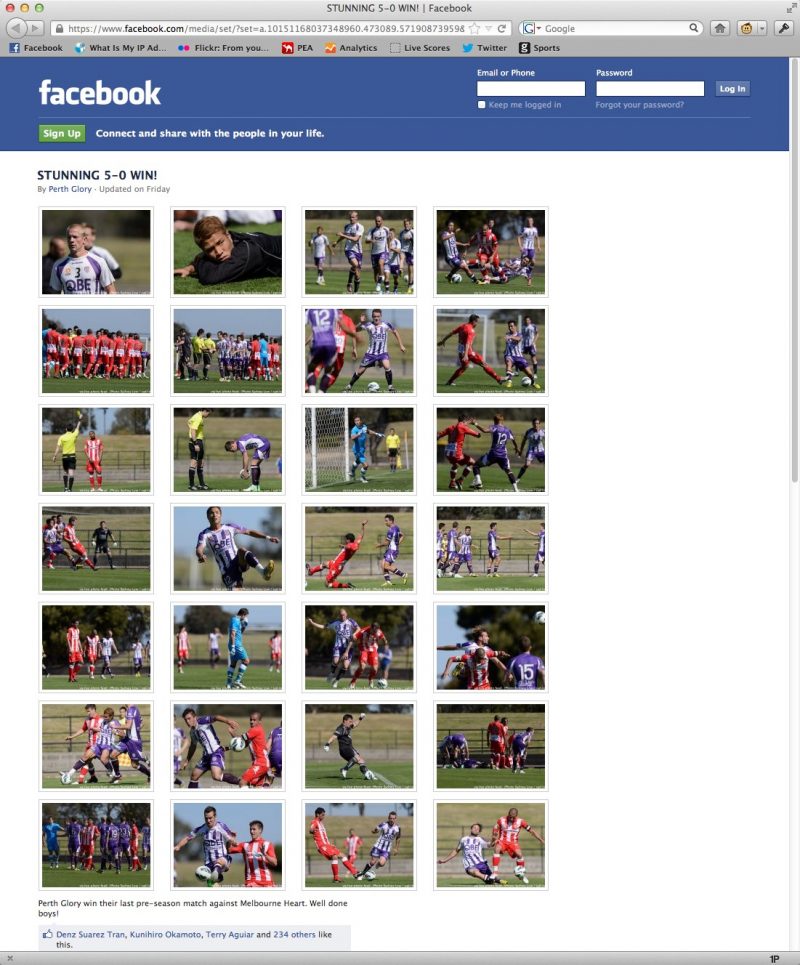
Here’s an example of a preseason match where Perth Glory FC used the live photos for their tweets and then posted as an album in their Facebook fan page:
Sep 26, 2012 | Categories: Photo equipment, Photo technique | Comments Off on Howto: a workflow for distributing photos for live blogging
Here’s a summary of articles that google throws up. In summary. The person who posted the information, and anyone else needs permission to republish it outside Twitter:
Sep 20, 2012 | Categories: Internet, Legal, Social media | Comments Off on Who owns your Twitter content and photos?
What are ACL? It’s a bit of magic that allows files to be set with certain permissions when they are created. Why’s that important? Well, it’s got to do with a Nikon D4, Lightroom, SFTP and tethered shooting. More to come, but here’s a bit about ACL:
Sep 19, 2012 | Categories: Tech | Comments Off on The magic of ACL in OSX
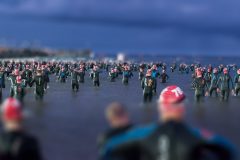
You can’t always shoot with a tilt-shift lens but you can now create the effect pretty convincingly with Photoshop CS6. Here are a few photos from last year with the effect applied:
Aug 14, 2012 | Categories: Aspen, France, Photo technique, Recent shoots, Ski resorts, Tech | Comments Off on Mini buildings and people
UPDATE: Finally got this working – it was down to a setting in CrushFTP that was banning the static IP. I have no idea why the IP was banned but removing this config setting cleared everything up.
UPDATE2: I’ve also ditched CrushFTP and am using the built in Mac OSX SFTP server. Full details on how to do this is here: http://www.chainsawonatireswing.com/
UPDATE3: I’ve also got it working wirelessly with the HAME MPR-A1 which is available via eBay sellers. Stay clear of clones or no-name versions though.
UPDATE4: It seems Pure-FTPd is another alternative if you want to use FTP rather than SFTP. Canon doesn’t support SFTP so if you’re using a 1D X or 1D C you will need to fire up a FTP server. http://www.pureftpd.org/project/pure-ftpd
And you can use the built in FTP server on OSX with these commands (via macworld):
sudo launchctl load -w /System/Library/LaunchDaemons/ftp.plist

sudo launchctl stop com.apple.ftpd

sudo launchctl start com.apple.ftpd

sudo launchctl unload /System/Library/LaunchDaemons/ftp.plist
– – –
I’m pretty handy with cameras, computers and networking but nothing I’ve tried can get my Nikon D4 transferring files to my Macbook Pro via ethernet to a FTP server running on the Mac. Here’s what I’ve tried:
- Using www.crushftp.com as the FTP server. Setup Macbook Pro on a static IP address of 192.168.1.12 on the ethernet port. Wifi disabled.
- Setup the D4 with static IP address of 192.168.1.2
- Connect the two together with ethernet cable
- FTP server setup with both user id and anonymous login, D4 is unable to connect with either setting.
- Here’s what’s interesting: If I connect the two devices through a router, the D4 can connect to the FTP server. But if it’s directly connected, no go.
Anyone out there have any suggestions?
Aug 05, 2012 | Categories: Photo equipment, Photo technique, Tech | Comments Off on Nikon D4, Ethernet, FTP and Macbook Success!